|
|
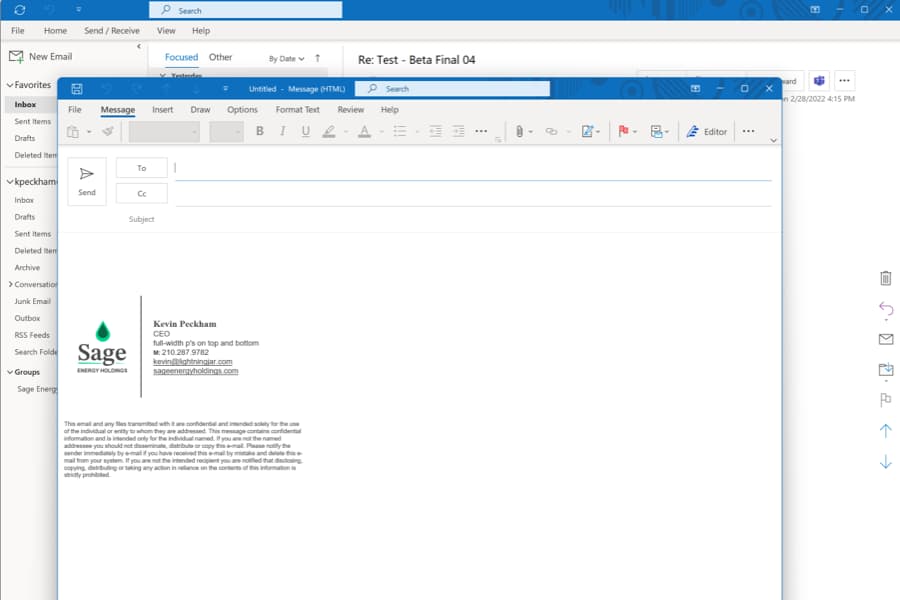
This email and any files transmitted with it are confidential and intended solely for the use of the individual or entity to whom they are addressed. This message contains confidential information and is intended only for the individual named. If you are not the named addressee you should not disseminate, distribute or copy this e-mail. Please notify the sender immediately by e-mail if you have received this e-mail by mistake and delete this e-mail from your system. If you are not the intended recipient you are notified that disclosing, copying, distributing or taking any action in reliance on the contents of this information is strictly prohibited.
|
|
1. Fill in the fields above to create your email signature.
2. Copy the signature using the copy button (* it will appear when the signature is ready)
3. Paste into your Outlook signature (detailed Outlook instructions below)
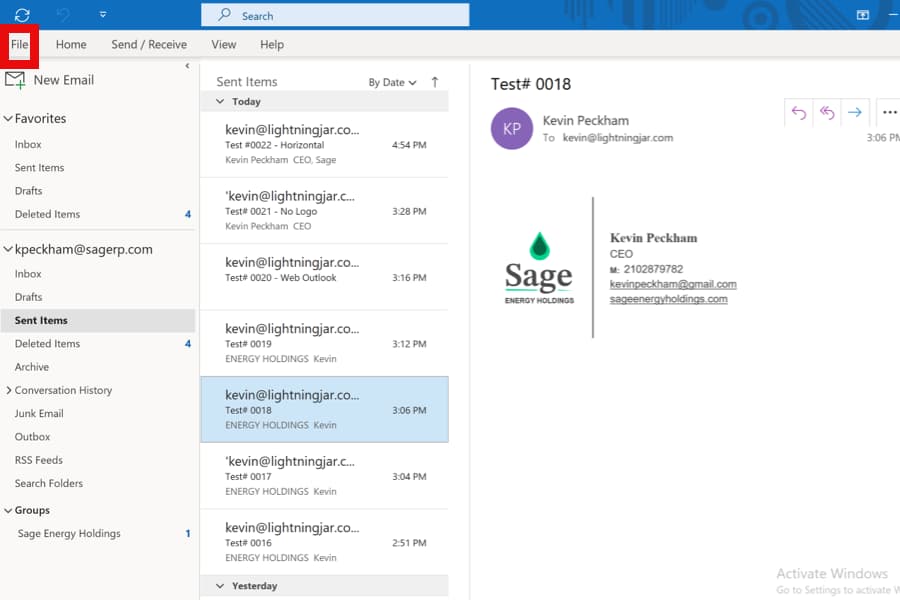
3.1 Click on 'File'
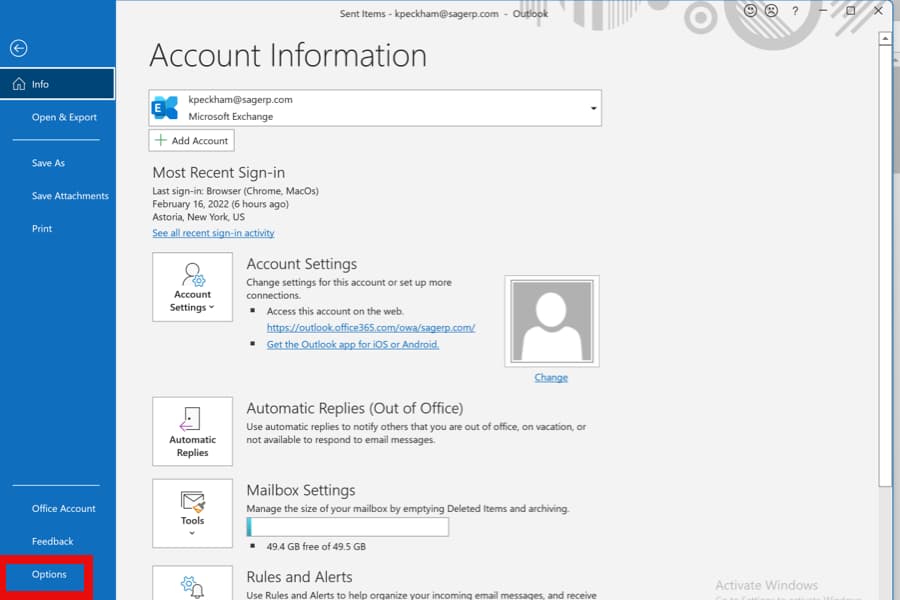
3.2 Click on 'Options'
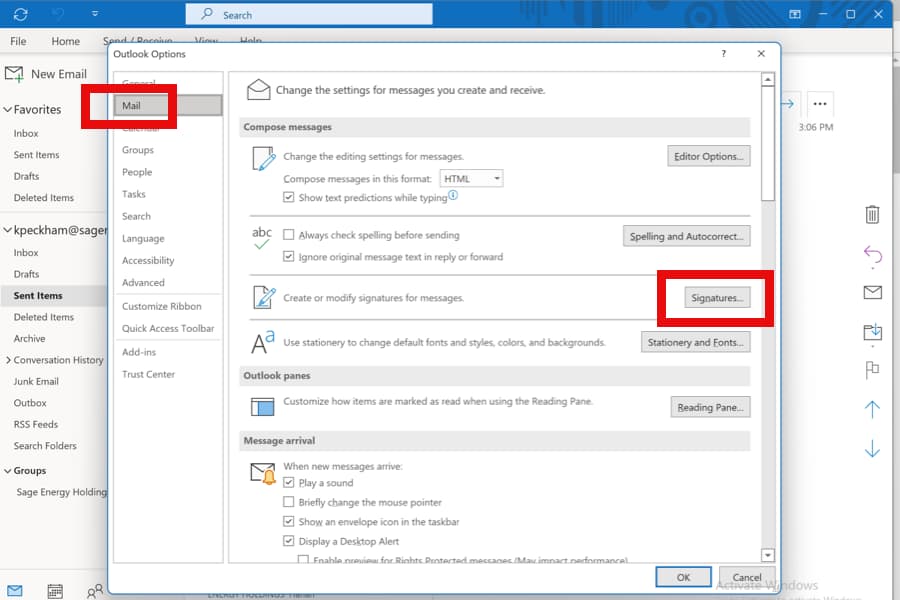
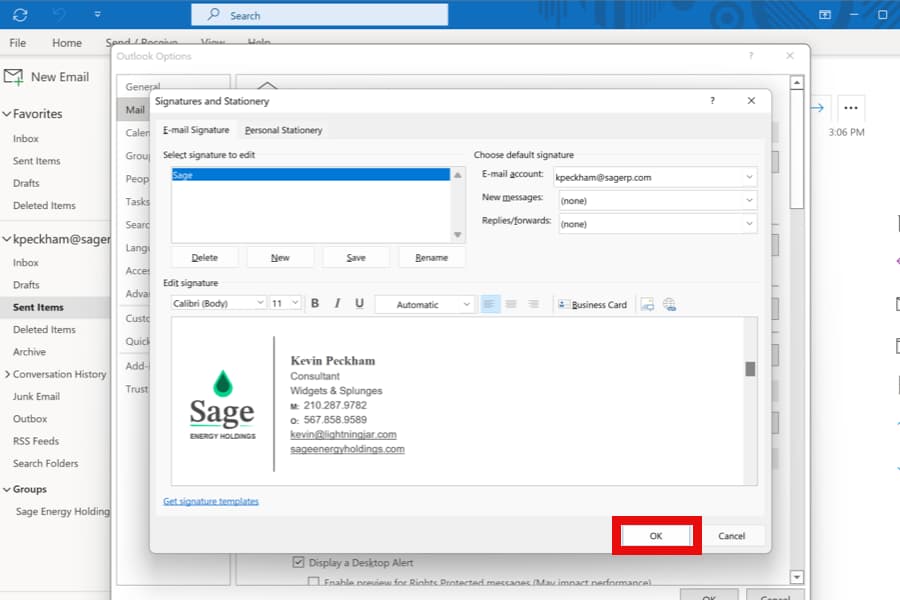
3.3 Click on 'Mail' then 'Signatures...'
3.4 Click on New
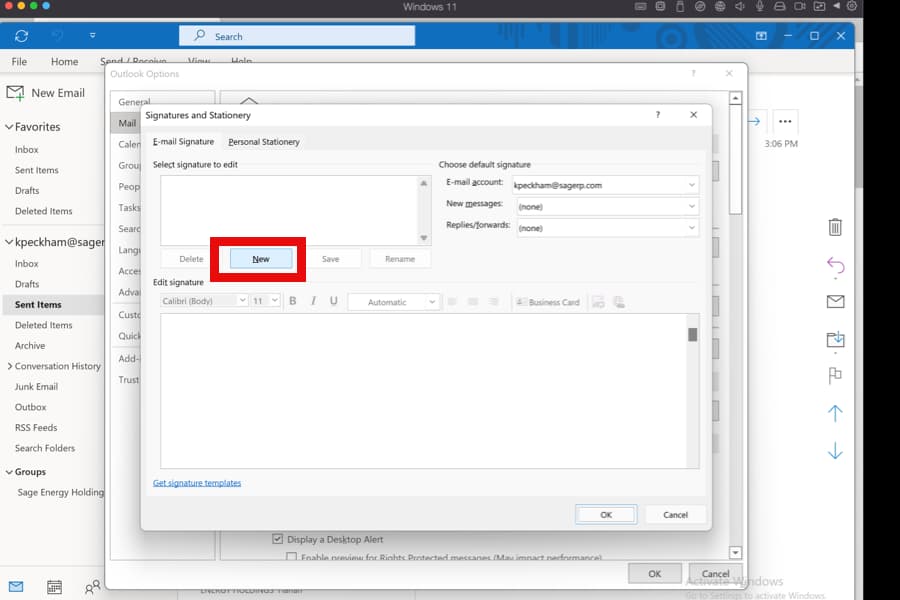
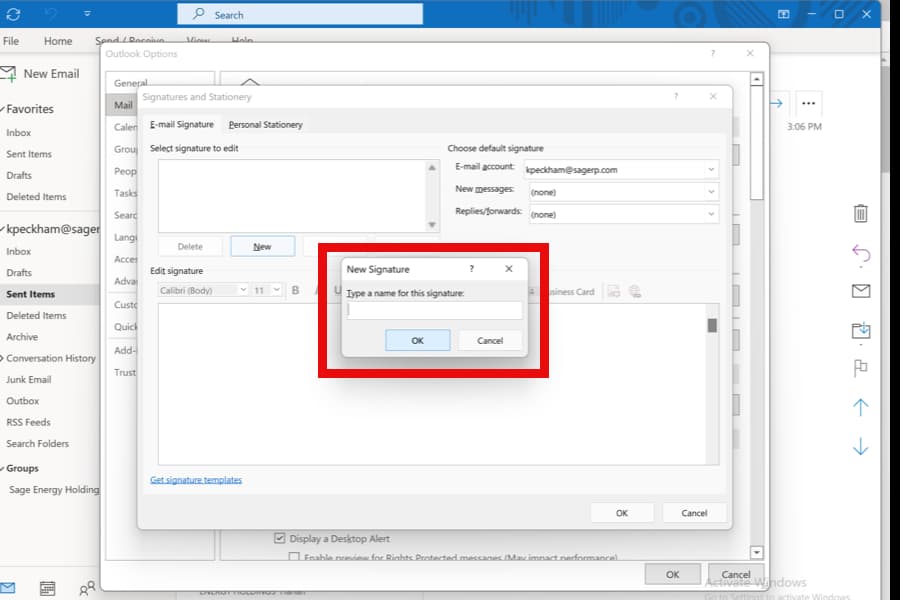
3.5 Type 'Sage' then click 'OK'
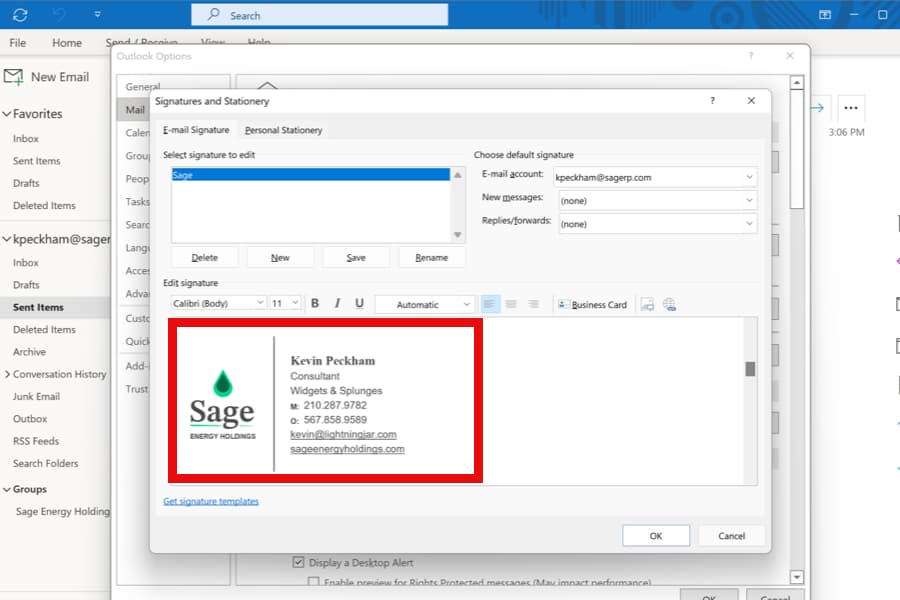
3.6 Paste signature
3.7 Set 'Sage' as default signature
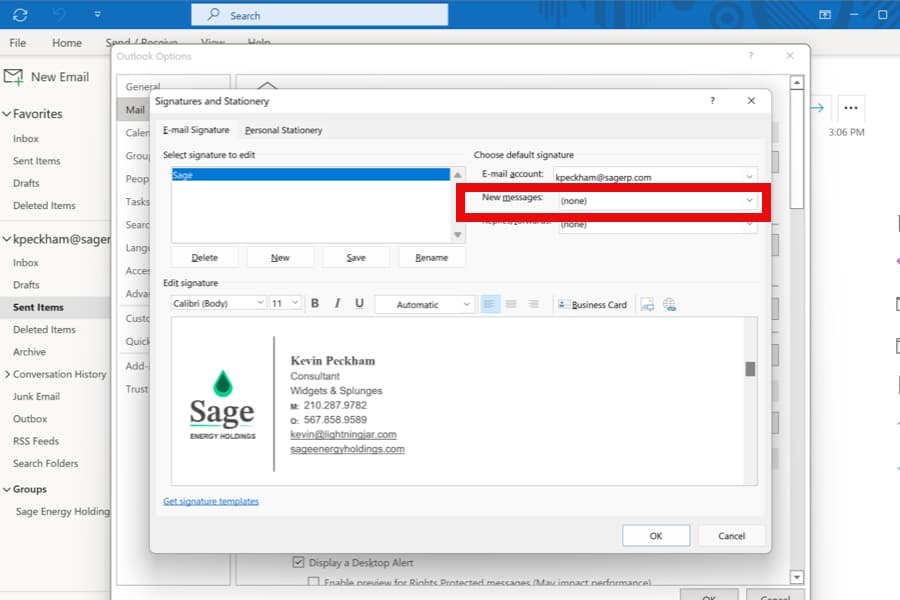
3.8 Click 'Ok' + exit Options
3.9 Send a test email to confirm